Form QR Code Generator
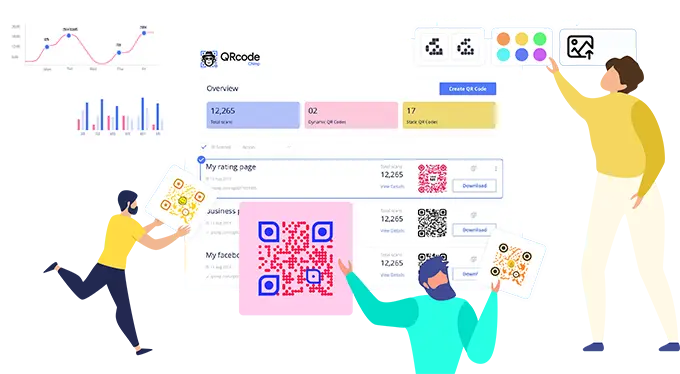
Build your own form and share it with a QR code. Collect feedback, leads, and survey responses from a single scan, with every submission tracked in one dashboard.
Create a Form QR Code
Trusted By World's Top Brands
You are in good hands!
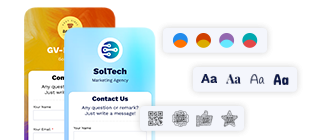
Create and Manage Forms using Powerful Online Form Builder
An online form builder like QRCodeChimp makes creating and managing forms with QR codes effortless, offering a wide range of features tailored to your needs.

What is an Online Form Builder with QR Code Integration?
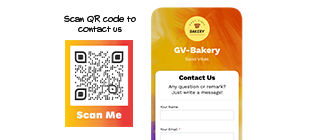
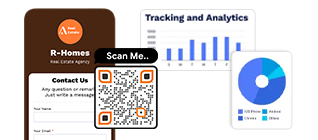
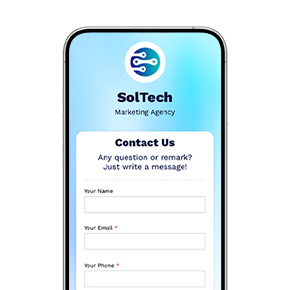
An online form builder is a tool that enables you to create digital forms such as surveys, feedback forms, warranty registrations, or event signups. When linked to a QR code, the form opens instantly upon scanning, allowing users to complete it on the go using their mobile devices. This technology eliminates manual data entry and streamlines the process of collecting first-party data. It is ideal for marketers, product managers, and business owners seeking efficient data collection solutions. The combination of an online form builder and QR codes enhances user experience, increases response rates, and ensures smooth data management.
How Does an Online Form Builder Work with QR Codes?
An online form builder integrated with QR codes streamlines first-party data collection with a user-friendly approach:

Why Use an Online Form Builder with QR Codes?
Using an online form builder combined with QR codes revolutionizes data collection and management by offering a quick, efficient, and user-friendly method to gather information such as feedback, surveys, and registrations. Users can instantly access and complete forms on their mobile devices just by scanning a QR code, increasing participation rates and convenience. This process saves time, reduces manual errors, and provides real-time insights through analytics. It’s perfect for marketing professionals, product managers, business owners, and more, making engagement and data accuracy easier than ever.
How to Share Forms Created with QRCodeChimp
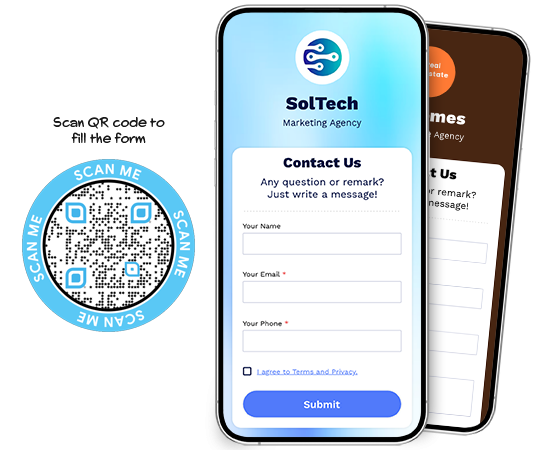
Sharing forms with QR codes can maximize your first-party data collection. Here’s how to do it effectively:
Sharing form QR codes via online and offline media
Using your form effectively in online and offline media should be the first thing. Here are some practical ways to share it:
Social media: Share QR codes linking to your forms on social media posts or profiles for easy follower access.
Printed material: Add QR codes to brochures, flyers, and posters for quick mobile access.
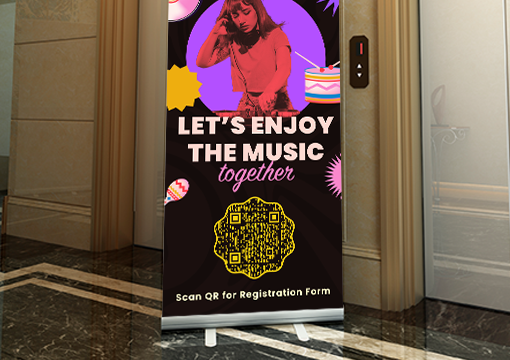
Event signage: Display QR codes at events for easy registration, feedback, or surveys.
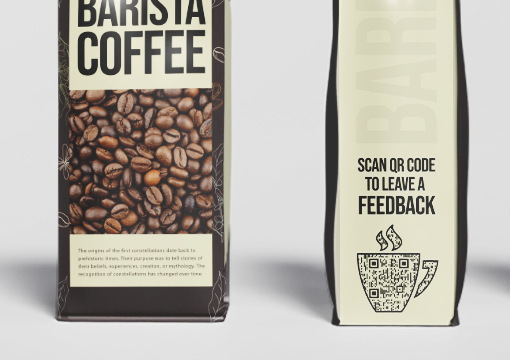
Product packaging: Include QR codes on packaging for warranty registration or customer feedback.


Adding forms on your website
Enhance customer interaction by adding forms seamlessly to your website.
Use the following methods to do this:
Embed directly: Use HTML embed code or WordPress plugins to add forms created with your online form builder directly to your website, enhancing customer interaction.
WordPress integration: If you use WordPress, simply add the form QR code to your site using a plugin or widget. This makes the form easily accessible to visitors.
Adding a feedback button: Use your form’s URL as a feedback button on your site for quick access and improved service quality.
Use Cases for Online Form Builders with QR Codes
When it comes to first party data collection, form QR codes have plenty of use cases like the following:


Best Practices for Form QR Code
When creating a QR code for first party data, follow these best practices to ensure it is effective and professional.
- Keep the form short: Ask only for the information you truly need. Shorter forms are easier to complete and usually get more responses.
- Use clear field labels: Make every field easy to understand. Users should know exactly what information they need to enter.
- Explain why users should scan: Add a short callout near the QR code, such as “Scan to register,” “Scan to share feedback,” “Scan to request a quote,” or “Scan to apply.”
- Make the form mobile friendly: Most users will open the form on their phone. Keep the layout clean, the text readable, and the form easy to submit on mobile screens.
- Test before publishing:Scan the QR code from different devices and check the complete form submission flow before printing or sharing it.
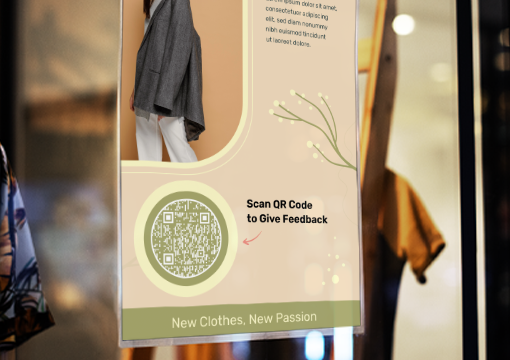
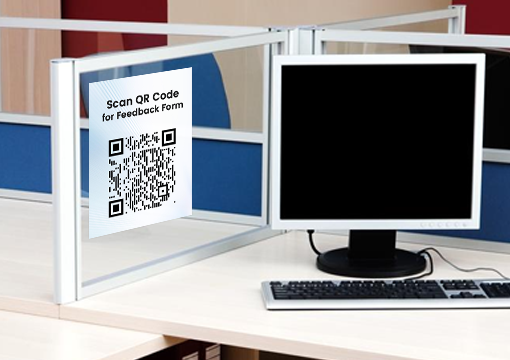
- Place the QR code where action happens:Put the QR code close to the moment of interest. For example, place a feedback form on a table card, a registration form on an event poster, and a product registration form inside the package.
- Use branded QR code design carefully:A branded QR code can attract attention, but it must remain scannable. Use enough contrast, avoid clutter, and test the final design.

What to Look for in a Form QR Code Generator
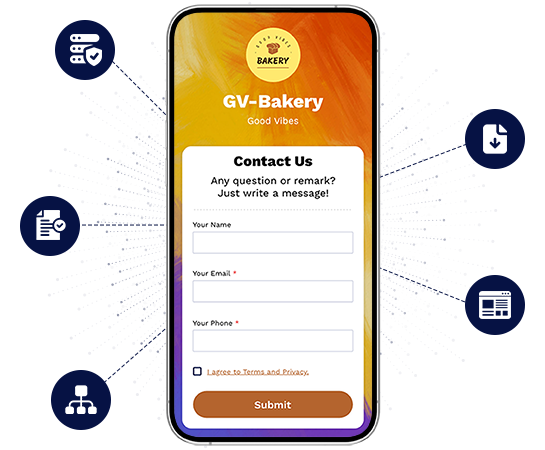
Choosing the right form QR code generator helps you create better forms, collect responses smoothly, and manage campaigns more effectively.
Data Security
Select a platform compliant with SOC 2 Type II, GDPR, and with multi-factor authentication to prevent unauthorized access.
Clear Terms & Conditions
Choose a solution with transparent privacy policies and terms regarding first-party data collection.
Robust Infrastructure
Ensure the platform can handle high traffic without data loss or downtime.
Easy Data Export
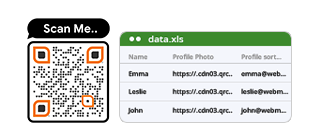
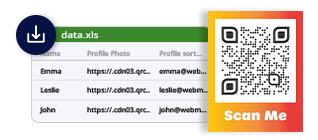
The collected first-party data should be easily exportable, such as downloadable Excel sheets.
User-Friendly Interface
A simple, attractive UI encourages users to fill in their details without friction.
- How to create a form QR code?
- Can I use a form QR code for registration?
- Can I use a form QR code for feedback?
- Where are form responses stored?
- Can I export form responses?
- Can I edit the form after creating the QR code?
- Can I customize the QR code design?
- Is a form QR code different from a Google Forms QR code?
- What can I use form QR codes for?
How to create a form QR code?
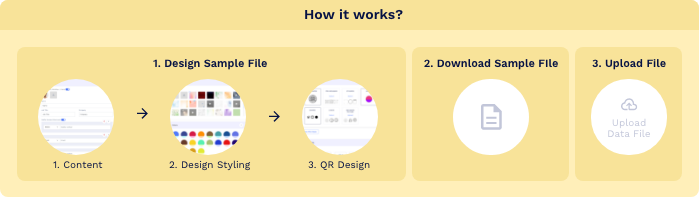
Step 1. Customize your page code (Optional)
Personalize the form URL generated by the online form builder.
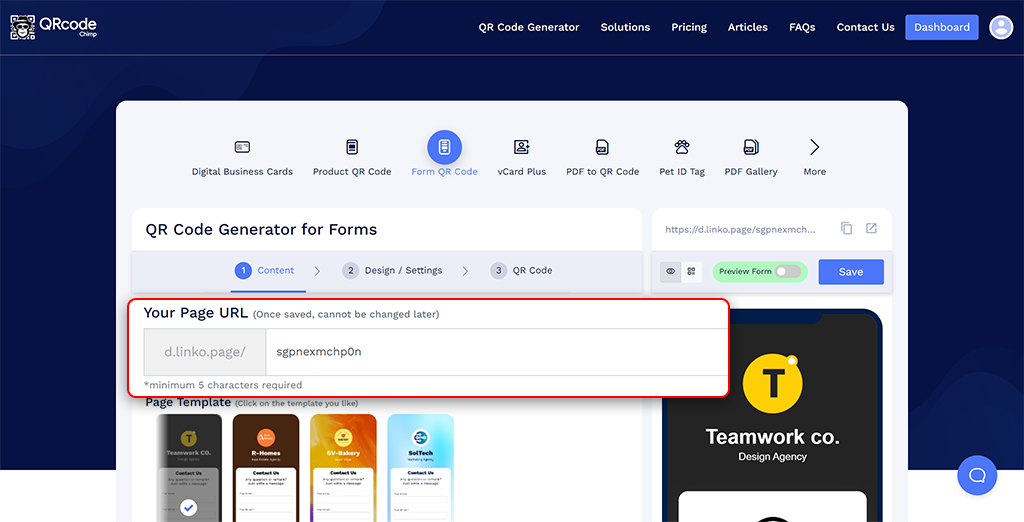
Step 2. Choose a page template
Select a template that fits your theme.

Step 3. Add profile information
Include profile photos, names, text, and more. Enable or disable components and add icons as needed.

Step 4. Add form information
Name your form, create a new form or use templates. Include header images, titles, descriptions, and labels/questions in various formats like One-Line, Email, Phone, Multi-Choice, Checkbox, Date, Time, Multi-Line, Dropdown, Multi-Select, and Rating.

Step 5. Add more components (Optional)
Enhance your form page with elements like Heading + Text, Links, Social Links, Buttons, Videos, Images, PDF galleries, Business Hours, Testimonials, Products, and more.

Step 6. Customize page design
Modify background, colors, fonts, and page loader to align with your brand identity.

Step 7. Customize the QR code design
Use customizable QR shapes, colors, logos, and other options to make your QR code visually appealing. (Don’t forget to save changes.)

Step 8. Save your QR code
Save your QR code with a name, adjust the URL if needed, choose a folder, and save. Test the QR code’s scannability on multiple devices before printing to ensure it functions properly.

Can I use a form QR code for registration?
Yes. You can use a form QR code for event registrations, class registrations, workshop signups, open house visitor details, webinar signups, and other registration workflows.
Can I use a form QR code for feedback?
Yes. Form QR codes are useful for customer feedback, event feedback, restaurant feedback, product feedback, service feedback, and employee feedback.
Where are form responses stored?
Submitted responses are available in your QRCodeChimp dashboard. You can review and export responses based on your requirements.
Can I export form responses?
Yes. You can export collected form response data from your dashboard when you need it for follow-up, reporting, analysis, or internal workflows.
Can I edit the form after creating the QR code?
Yes. Since the QR code links to a digital form page, you can update the form content without reprinting the QR code.
Can I customize the QR code design?
Yes. QRCodeChimp lets you customize your QR code with colors, shapes, stickers, and logo options. Always test the QR code before printing or sharing it.
Is a form QR code different from a Google Forms QR code?
A Google Forms QR code usually links to a form created in Google Forms. With QRCodeChimp’s form QR code generator, you can create the form, customize the QR code, collect responses, and manage the QR code from one platform.
What can I use form QR codes for?
You can use form QR codes for registrations, feedback, applications, surveys, lead capture, contact collection, product registrations, service requests, appointment requests, and internal forms.